
Connect your AI assistant
Use Blocchi's governed business context in ChatGPT, Claude, Cursor, and other MCP clients.
Choose your AI client to connect to Blocchi using the Model Context Protocol (MCP). Start with read-only business context; expand permissions only when a task requires them. You do not need to install a local MCP server.
How the connection works
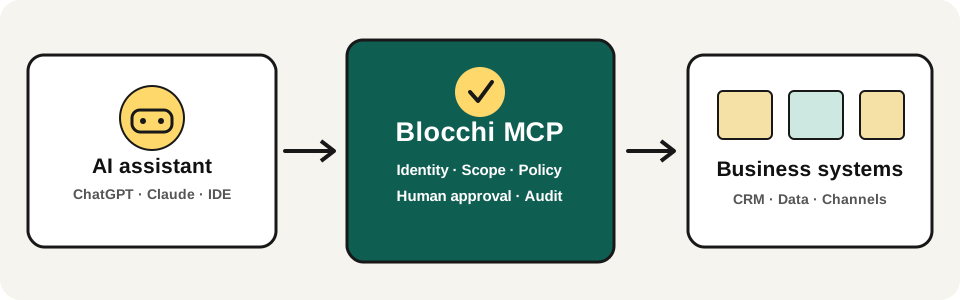
- Choose a client and enter Blocchi's remote MCP address:
https://www.blocchi.ai/api/mcp. - Authorize access via your Blocchi sign-in when your client supports the published OAuth flow, or configure a scoped key in its secure connector settings.
- Use Test my access in Blocchi's Developer settings to verify your browser session can discover MCP tools. This is not a check of the AI client's connection.
- Test a read-only question in your AI client and confirm the response includes actual authorized business evidence. Missing data remains missing; a successful connection does not mean a source has synced.
- Review permissions. Blocchi still checks tenant, role, data scope, entitlements, source permission and action approval. Your AI assistant cannot bypass these controls.
Which setup should I use?
| You want to… | Start here |
|---|---|
| Ask ChatGPT questions about Blocchi | ChatGPT |
| Connect Claude on web or desktop | Claude |
| Use Blocchi from a coding environment | Cursor and coding agents |
| Configure Gemini CLI or another MCP application | Other MCP clients |
Your first safe questions
Copy one of these prompts after connecting:
- “Show which Blocchi capabilities I can access, and list any missing data sources before using metrics.”
- “Summarize my authorized revenue pipeline and cite the available evidence and freshness.”
- “Which work items need a human decision? Don't execute any actions.”
Results depend on your workspace, available data and granted tools. These prompts do not imply that every capability is available in every plan.
Credentials, access, and safety
- For personal interactive use, prefer a client-supported OAuth sign-in. Blocchi exposes authorization discovery; compatibility still varies by client.
- If OAuth is unavailable, create a personal read-only API key at Developer settings, and store it only in your client's secret/connector configuration. Never paste credentials into chat, prompts, screenshots or shared repository files.
- Workspace admins can create service credentials; unattended automation should use the separate Automation Identity contract with explicit scopes, limits and human review.
- If the AI asks to change records or send messages, review the exact target, approval and side effects. Granting a connection is not permission for unrestricted execution.
- Disconnect or revoke the authorization/credential when it is no longer needed.
Problems connecting?
| Symptom | What to check |
|---|---|
| Client cannot discover tools | Confirm the exact /api/mcp URL, HTTPS reachability and client support for remote Streamable HTTP MCP. |
| Sign-in or OAuth fails | The client may not support Blocchi's published client identity / redirect flow. Use its supported credential method or ask an admin to configure a compatible client. Do not disable authentication. |
401 | Token missing, expired or revoked. Sign in again or rotate the scoped credential. |
403 or tool not listed | Your role, granted scope, product entitlement, data/source access or current policy does not permit it. Do not bypass. |
| Empty or stale answers | Confirm source connection, sync status, semantic mapping and freshness in Data sources. |
| Unable to write | Expected when read-only, approval-gated or unsupported; use Blocchi's governed action flow. |
For protocol details and the generated tool catalog, see the MCP reference. For an API integration instead of an AI agent, see API vs MCP.
Provider UI changes frequently. Each client guide links to the provider's official help. No provider-directory listing or one-click activation is claimed here.
Last updated on